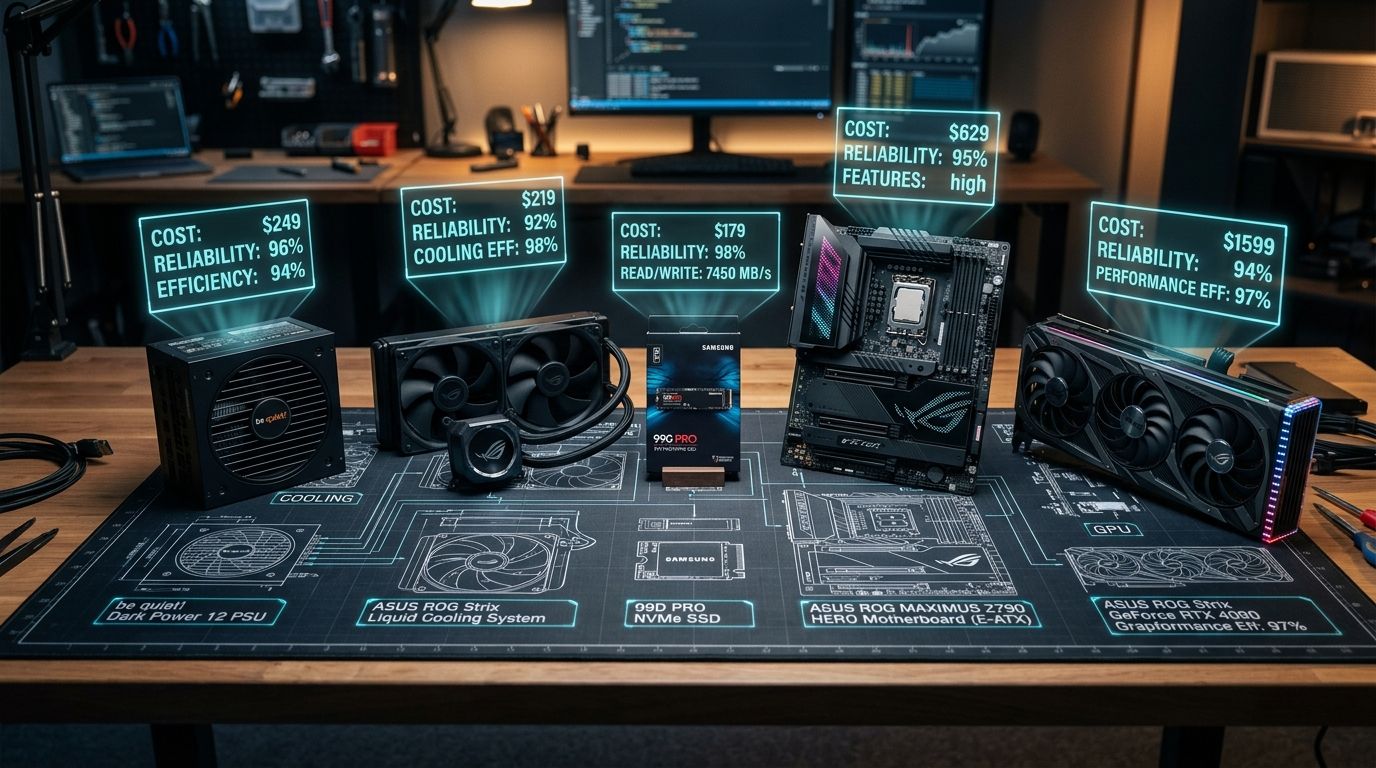
You have spent days comparing benchmark charts, reading reviews, and assembling your ideal custom PC in an online shopping cart. You click calculate, and the final total stares back at you: the build is 12% to 15% over budget. In global terms, that is an extra $150 to $200. In regional markets like Egypt, it represents an uncomfortable 8,000 to 10,000 EGP above your financial ceiling. Now something has to change.
The standard internet response is insultingly simplistic: "Just buy cheaper parts." But arbitrary cost-cutting is the quickest way to ruin a computer. Cut blindly, and you risk buying an unstable power supply that endangers your hardware, an enclosed case that induces severe thermal throttling, or a motherboard with VRMs so weak they throttle your processor. Conversely, stubbornly refusing to adjust your list can delay your build for months under unnecessary financial strain.
The real engineering question is not whether to save money, but which specific components can be downgraded without noticeably degrading your daily computing experience, and which cost reductions will backfire into instability, loud acoustic whine, or expensive early replacements. Following our guides, How to Allocate Your PC Budget Around Your Real Workload and Upgradability vs Performance: What Should You Prioritize?, this article completes our hardware trilogy by showing you exactly where to cut costs intelligently—and where you must stand your ground.
Cheaper Is Not Bad, and Expensive Is Not Good
The single most destructive mindset in PC building is treating price as an absolute proxy for engineering quality. Hardware forums frequently circulate dogmatic mantras: "Never buy a budget motherboard," "Always buy liquid cooling," or "Never spend less than $100 on a case." These absolute assertions fail real-world engineering analysis.
Component selection is contextual. A $130 motherboard paired with a 65W gaming processor can be an exemplary, rock-solid engineering choice, while a $320 flagship board on that same chip is pure financial waste. A $60 high-airflow mesh case keeps your graphics card cooler and quieter than an enclosed $200 glass showcase. A 650W power supply built with premium Japanese capacitors and comprehensive safety protections is infinitely superior to a cheap, unverified 850W unit with aggressive marketing on the box.
The goal of smart budgeting is not buying the cheapest part—it is buying the appropriate part. Every dollar spent beyond what your system actively requires delivers diminishing returns, while every dollar cut below your system's baseline stability creates an active operational hazard.
The Traffic-Light Spending Framework
To evaluate potential budget cuts objectively, we categorize every component and feature into three distinct spending zones:
Usually Worth Questioning
Areas where unnecessary spending is rampant and cost reductions rarely hurt real-world performance:
- Motherboard Luxury: Extreme overclocking VRMs, 4x M.2 slots, cosmetic thermal armor.
- Aesthetic RGB: Glowing cables, proprietary fan controllers, RGB RAM heatspreaders.
- Overkill Cooling: 360mm AIO coolers on mainstream 65W–100W consumer processors.
- Extreme Storage: Paying huge premiums for 7,000+ MB/s PCIe 5.0 drives for gaming.
- Oversized Power: Buying 850W–1000W units for 350W–400W system draws.
- Showcase Cases: Dual-chamber glass aquariums with poor stock airflow.
Workload Dependent
Components where spending must be calibrated strictly against the specific software you run daily:
- CPU Tier: High core counts matter for rendering and compiling, but deliver negligible gaming gains.
- GPU Tier: Critical for gaming and 3D rendering; secondary for programming, audio, and office productivity.
- RAM Capacity: 32GB is the modern sweet spot; 64GB+ is mandatory for heavy production, but wasted on esports.
- Connectivity: Onboard Wi-Fi 6E/7 and Bluetooth if needed; redundant if hardwired to Ethernet.
- Storage Capacity: Sacrificing raw drive capacity for extreme sequential speed is almost always a mistake.
Never Cut Blindly
Baseline operational requirements where cutting corners causes catastrophic instability or hardware failure:
- PSU Internal Topology: Electrical protections (OVP, OCP, UVP, SCP), reputable manufacturing, and warranty.
- Chassis Airflow: Front mesh intake and fan clearance preventing thermal throttling.
- Required Workload RAM: Dropping below your operating system and application memory ceiling causes pagefile stutter.
- Reliable Storage NAND: Avoiding unbranded DRAM-less QLC drives with volatile controller firmware.
- Hardware Clearances: GPU length, cooler height, and power supply clearance inside the chassis.
Motherboard: The First Place You Should Question
If your build is over budget, the motherboard is almost always the first component that deserves aggressive scrutiny. Motherboards generate substantial profit margins for manufacturers through cosmetic styling and enthusiast branding, making them an easy place for builders to overspend by $100 to $200 without gaining tangible benefits.
Consider the features that elevate motherboard prices from $130 into the $300+ stratosphere: heavy cast-aluminum thermal armor, 16-phase 90A power stages designed for sub-zero liquid nitrogen overclocking, multiple PCIe x16 slots that 99% of builders will never populate, four or five M.2 slots when only one or two drives are installed, audiophile-grade DACs that go unused because the builder uses a USB or wireless headset, integrated POST code displays, and premium Wi-Fi 7 chips on systems permanently tethered to Gigabit Ethernet.
Before purchasing an expensive motherboard, ask this diagnostic question: "What specific feature am I paying extra for, and will I actively use it this week?" If you cannot identify an exact functional reason you need a premium chipset over a well-designed B-series board, you have uncovered your first $80 to $120 in safe savings.
What actually matters on a motherboard? Socket compatibility with your CPU, a capable VRM layout with heatsinks that handle your chip's actual power draw without throttling, reliable memory trace routing for your target XMP/EXPO profiles, sufficient rear USB ports for your peripherals, and an accessible BIOS flashback button. A well-built $130 to $150 B-series motherboard provides all of this and delivers the exact same in-game frame rate as a $400 flagship board.
Cooling: You Probably Do Not Need a 360mm AIO
All-in-one (AIO) liquid coolers have become the default aesthetic centerpiece of modern custom PC builds. Yet from a thermal engineering perspective, mounting an expensive 240mm or 360mm liquid cooler onto a mainstream consumer processor is an act of financial extravagance.
Modern midrange gaming processors—such as the AMD Ryzen 5 7600 or Intel Core i5-13400/14400—have real-world gaming power consumption figures between 65 watts and 85 watts. Cooling an 80-watt thermal load does not require dual radiator pumps, coolant hoses, and three 120mm fans spinning at full speed. A standard $25 to $35 single-tower or dual-tower air cooler featuring copper heatpipes and a quiet 120mm PWM fan maintains these processors well below their thermal throttling thresholds under sustained loads.
Swapping a $35 air cooler for a $160 liquid AIO yields zero extra frame rates. A CPU does not boost higher simply because coolant cycles through an aluminum radiator; once the chip operates safely below its boost temperature ceiling (typically 75°C to 85°C), lower temperatures produce no extra clock speed.
Aesthetic Honesty: If you want an AIO liquid cooler because you appreciate the clean interior aesthetic, desire an LCD pump screen displaying telemetry, or want synchronized glowing fans, that is entirely valid. Personal computers sit in our daily living spaces. However, classify that purchase honestly as Aesthetic Spending rather than required performance hardware. Never sacrifice your target graphics card tier just to keep an AIO in your cart.
When does liquid cooling matter? In workstations equipped with high-TDP flagship processors—such as an Intel Core i9-14900K or AMD Ryzen 9 7950X running multi-hour Blender 3D renders or compiling massive codebases at 250W sustained power draw. Match your thermal solution to your processor's real power dissipation, not social media trends.
Case: Save on Luxury, Never on Airflow
A computer case is fundamentally an enclosure designed to protect internal components, provide structural mounting points, and facilitate directed thermodynamic airflow. Yet prices range from $45 to over $350.
You can safely reduce spending on luxury materials: brushed anodized aluminum, thick tinted dual-chamber tempered glass panels, integrated sensor display panels, complex motorized latches, and brand premiums. A well-engineered $60 case constructed from standard steel and high-porosity mesh houses and cools your components just as effectively as a $220 boutique showcase.
Where must you NEVER cut costs? Airflow and mechanical clearance. Choosing a cheap, enclosed case with a solid plastic front panel or glass placed millimeters in front of intake fans is a severe mistake. When intake fans cannot breathe, internal ambient temperatures spike. Graphics card and CPU fans spin at maximum RPM to compensate, generating intrusive acoustic whine while hardware throttles clock speeds to prevent thermal damage.
Ensure your chosen budget case meets these non-negotiable baselines: a full mesh front panel, adequate clearance for your graphics card length (modern triple-fan GPUs frequently exceed 300mm), vertical clearance for your CPU cooler, basic dust filtration on intake zones, and at least two pre-installed fans (or budget for adding inexpensive intake fans).
RGB: The Easiest Honest Answer
Let us address the most obvious candidate for budget trimming: RGB lighting. Glowing light-emitting diodes do not produce computational power. They do not render frames faster, compile software quicker, or reduce memory latency.
When builders struggle to stay within budget, an audit of aesthetic premiums often reveals startling totals. Adding RGB RAM heatspreaders costs a $15 to $25 premium. A set of three addressable RGB fans with proprietary controller hubs costs $50 to $90 more than standard high-static-pressure fans. An ARGB liquid cooler adds $30 to $50 over an equivalent black cooler. Illuminated cable extensions add $35 to $50, and glowing GPU brackets add another $20.
Together, these aesthetic add-ons easily total $150 to $250 (or 7,000 to 12,000 EGP). In a midrange computer build, that financial delta is often the exact difference between stepping up from a 1080p GPU (like an RTX 4060) to a high-refresh 1440p GPU (like an RTX 4070 or RX 7800 XT), or doubling your system memory from 16GB to 32GB. Aesthetics have personal value, but cosmetic glow never compensates for missing silicon horsepower.
SSD: Do Not Buy a Benchmark Score
Storage marketing is dominated by eye-catching metrics: "Blazing 7,400 MB/s Read Speeds!" or "PCIe 5.0 12,000 MB/s Throughput!" These figures represent theoretical maximum sequential read and write performance—transferring massive single contiguous files under artificial benchmark conditions.
However, 95% of everyday desktop computing, operating system responsiveness, software launching, and game loading rely on random 4K read performance at low queue depths. In random 4K read operations, the real-world performance difference between a quality PCIe 3.0 NVMe drive (rated at 3,500 MB/s sequential) and a cutting-edge PCIe 5.0 drive (rated at 10,000+ MB/s) is measured in fractions of a second. Even with modern technologies like Microsoft DirectStorage, game load times between mainstream NVMe drives and flagship benchmark champions differ by less than one second.
What should you avoid when cutting storage costs? Never buy bottom-tier, unbranded solid-state drives using low-grade QLC NAND flash without basic controller wear-leveling algorithms. Reliable storage requires dependable TLC NAND flash and proven controller firmware from established fabricators (such as Western Digital, Crucial, Kingston, or Samsung). Save money by avoiding boutique benchmark tiers, but maintain strict standards for component longevity and data integrity.
RAM: Cut Excess Speed, Protect Required Capacity
Memory optimization requires balancing two competing metrics: capacity (how many gigabytes you install) and speed/timings (frequency in MT/s and CAS latency). When facing budget constraints, builders often make the catastrophic mistake of compromising capacity to afford faster or prettier memory sticks.
If your daily workflow—whether that is running virtual machines, editing 4K video timelines in Premiere Pro, compiling multi-module codebases, or playing modern open-world titles with background browser tabs—consumes 22GB of memory, a 16GB kit of extreme DDR5-7200 memory will cause your system to stutter brutally. When Windows exhausts physical RAM, it begins paging memory pages to your SSD (virtual memory), causing severe micro-stutters and hitching. A standard 32GB kit running at sweet-spot speeds (such as DDR5-6000 CL30 or DDR4-3200 CL16) will run circles around the 16GB premium kit in real-world responsiveness.
Save money by avoiding high-tier memory kits designed for competitive overclockers. In modern DDR5 platforms, paying a 40% premium for DDR5-7200 or DDR5-8000 kits yields less than a 2% frame rate uplift in CPU-bound scenarios, while introducing memory controller instability. Purchase the capacity your workload requires, select the platform's validated architectural sweet spot, and ignore extreme memory branding.
PSU: Save on Wattage, Never on Quality
The power supply unit (PSU) is the heart of your computer. It converts high-voltage alternating current from your wall outlet into tightly regulated, low-voltage direct current (+12V, +5V, +3.3V) feeding delicate silicon circuits. It is the only component in your system capable of destroying every other part simultaneously if it fails.
There are two widespread, equally flawed mistakes builders make with power supplies:
- Overspending on Unusable Wattage: Buying a massive 1000W Platinum-rated unit for a PC drawing 380W under full load because they believe it "future-proofs" their build.
- Dangerous Cost-Cutting: Buying the cheapest 750W or 850W power supply they can find online to shave $30 off their build total.
To navigate this safely, you must understand that 80 PLUS certification is strictly an energy efficiency rating—it is NOT a certification of internal build quality or safety. An 80 PLUS Gold badge merely indicates that the unit wastes less electricity as heat at specific loads. It says nothing about capacitor quality, voltage ripple suppression, transient spike tolerance, or whether the manufacturer included essential protection circuits: Over-Voltage Protection (OVP), Over-Current Protection (OCP), Under-Voltage Protection (UVP), Short-Circuit Protection (SCP), and Over-Temperature Protection (OTP).
Consult reputable independent hardware evaluations—such as the Cybenetics testing database and established community tier lists. The correct budgeting strategy is clear: Calculate your system's actual maximum power consumption, add a healthy 20% to 30% headroom, and purchase an impeccably built, Tier-A or Tier-B unit with a 7 to 10-year manufacturer warranty. Dropping from an overkill 850W titanium unit to a top-tier 650W/750W gold unit is smart savings; dropping from a reputable brand to a generic bomb is reckless gambling.
CPU: Do Not Pay for Cores You Never Use
Processor marketing often frames CPU purchasing around core counts: six cores, eight cores, twelve cores, sixteen cores, or twenty-four cores. But computational workloads do not scale linearly across cores unless the software is explicitly architected to do so.
For modern PC gaming, single-core instructions and cache latency dominate performance. A modern 6-core / 12-thread or 8-core / 16-thread processor delivers 95% to 98% of the gaming performance of a 16-core flagship within the same architectural generation. Spending an extra $200 to upgrade from a Ryzen 7 7700 to a Ryzen 9 7950X for a dedicated gaming rig delivers almost zero additional frames per second, while consuming significantly more power and requiring heavier cooling.
However, the reverse holds true for professional workloads: if you compile large C++ or Rust software projects, render 3D scenes in V-Ray, or transcode raw video streams, multi-threaded throughput directly dictates how many hours you spend waiting for task completion. Let your software workload dictate your processor tier, not marketing hierarchy.
GPU: Downgrading Here Changes the Entire Machine
In gaming and GPU-accelerated 3D applications, the graphics card is the undisputed engine of the build. Unlike motherboards, cases, or coolers, moving down a GPU tier directly, measurably degrades your computing experience.
Dropping from an RTX 4070 class card down to an RTX 4060 class card does not save a subtle percentage—it drops real-time gaming frame rates by 35% to 45%, reduces video memory (VRAM) from 12GB to 8GB, and restricts your comfortable resolution target from crisp 1440p high settings down to 1080p medium settings. Never casually sacrifice a GPU tier to protect cosmetic lighting, liquid cooling, or luxury motherboard features.
Conversely, avoid GPU overspending by auditing your actual display setup. If you play competitive multiplayer games (Valorant, CS2, League of Legends) on a 1080p 144Hz monitor, investing in a high-end 4K GPU is completely unjustified. The hardware will produce hundreds of frames that your monitor physically cannot display.
The Monitor Problem: Budget the Complete System
A desktop computer tower does not exist in isolation. It is one half of a sensory loop, and the monitor is the lens through which you experience every single component you purchased. One of the most heartbreaking budgeting errors is watching someone pour 90% of their capital into a powerhouse PC tower, only to plug it into a 1080p 60Hz office display with washed-out color reproduction and poor response times.
If you have an aggressive total budget, allocate your funds across the entire system ecosystem: ensure your target GPU class matches your monitor's resolution (1080p vs 1440p vs 4K), refresh rate (120Hz+ for fluid motion), and adaptive synchronization (G-Sync / FreeSync) to eliminate screen tearing.
Wi-Fi, Bluetooth & Connectivity Nuances
Connectivity features represent another common source of motherboard price inflation. If your desktop is permanently positioned adjacent to an Ethernet wall jack, spending an extra $40 for integrated Wi-Fi 7 provides virtually zero utility. However, if you rely on wireless peripherals—such as Bluetooth controllers, headphones, or wireless keyboards—buying a stripped-down motherboard without onboard Bluetooth will force you to purchase unreliable USB dongles later. Audit your actual peripheral connections: count your required rear USB ports, determine whether you need front-panel USB-C 10Gbps, and verify your networking environment before finalizing your motherboard choice.
Fans, Cables & Accessories: The 'Buy Later' Strategy
Many builders enter the purchasing process believing they must construct their absolute dream setup on day one. They fill every available fan mount in the chassis, buy custom braided cable sleeves, add internal display telemetry screens, and purchase RGB headset stands. When the cart total explodes, they begin hacking away at the processor or graphics card.
This is completely backwards. Introduce the concept of Staged Upgrading using our three spending horizons:
The Operational Spine
Essential components that define the machine's baseline performance, stability, and safety:
- Proper CPU tier for target workload.
- Target GPU tier matching monitor resolution.
- Required RAM capacity (e.g. 32GB baseline).
- Dependable power supply with proper safety tier.
- Reliable primary NVMe operating system drive.
- High-airflow mesh enclosure.
Refinement & Comfort
Enhancements that improve acoustics, connectivity, and build convenience:
- Quieter, premium static-pressure fans.
- Integrated Wi-Fi 6E/7 and Bluetooth on board.
- Modular PSU cables for easier routing.
- Higher-tier dual-tower CPU air cooler.
- Extra front-panel USB-C high-speed ports.
Painless Add-Ons
Modular accessories that plug in easily later without rebuilding the computer platform:
- Secondary high-capacity storage drives.
- Additional aesthetic case fans.
- Braided custom cable extensions.
- Internal LCD telemetry displays.
- Cosmetic RGB strips and GPU supports.
- Secondary displays and streaming peripherals.
Used Hardware: Strategic Savings vs High Risks
The secondary hardware market offers enticing opportunities to save 20% to 40% on component costs, but it requires cold engineering judgment. Not all computer components age at the same rate:
- Safe to Buy Used: CPUs have zero moving mechanical parts and rarely fail unless subjected to extreme overvolting or bent pins. RAM modules are solid-state silicon with exceptionally low historical failure rates. Computer cases are structural metal and plastic; if the front I/O works and panels fit, they perform identically to new units.
- Exercise Extreme Caution: Power supplies suffer internal capacitor degradation over years of thermal cycling, and warranties rarely transfer to second-hand owners. Liquid AIO coolers experience galvanic corrosion, coolant permeation through rubber tubes, and pump impeller wear. Used SSDs may have depleted NAND write endurance (TBW) from sustained plotting or server caching.
- Used GPUs: Inspect thermal paste elasticity, fan bearing noise, and demand video proof of stress-testing (FurMark or 3DMark Time Spy) before purchase. Do not dismiss ex-mining cards outright, but verify bios integrity and physical heatsink oxidation.
Don't Save by Accidentally Creating a Dead-End Build
As we analyzed extensively in Upgradability vs Performance: What Should You Prioritize When Building a PC?, short-term savings can create disproportionate long-term expenses. If you save $15 by buying a motherboard with only two RAM slots, upgrading your memory two years later forces you to throw away your existing RAM sticks instead of simply adding two more. If you save $20 by buying a 450W power supply, you will be forced to buy an entirely new PSU the moment you upgrade your graphics card.
Save money by cutting luxury, never by eliminating reasonable platform expansion pathways.
The Psychological Trap: "It's Only a Little More"
Budget creep is rarely the result of a single extravagant decision. It is an insidious, compounding psychological trap known to hardware enthusiasts as the "It's Only a Little More" syndrome:
- "This motherboard has slightly better heatsinks for only $25 more..."
- "This RAM has glowing RGB diffusers for only $20 more..."
- "This 360mm liquid cooler looks amazing for only $45 more..."
- "This Gen 5 SSD is faster in benchmarks for only $30 more..."
- "This showcase dual-chamber case is only $35 more..."
- "This 850W power supply is only $25 more..."
Individually, every single increment feels completely justifiable and manageable. But collectively, these six micro-upgrades just added $180 (over 8,500 EGP) to your invoice without increasing your in-game performance by a single frame. Audit every component against your actual workload requirements, not against theoretical perfection.
The Downgrade Test: A 5-Question Audit
Whenever you are evaluating whether to cut a component's price, put it through our five-question diagnostic test:
The Kamashka 5-Question Downgrade Test
Run every prospective budget cut through this diagnostic sequence before changing your cart:
Does this change reduce computational performance in my primary daily workload?
Does this downgrade compromise system electrical safety, data integrity, or long-term reliability?
Does this remove an input, output, or connectivity feature that I will actively use this week?
Does this decision force a much larger, premature replacement expense in my next upgrade cycle?
Will I realistically notice the difference in daily real-world use without running a synthetic benchmark?
You have found a completely safe, intelligent place to save money. Cut the expenditure with confidence and protect your primary performance engines.
Case Study: Rebalancing an Over-Budget Build
To demonstrate how this methodology functions in practice, let us examine a realistic scenario: a builder has assembled a high-end 1440p gaming and content creation build that is 15% (approximately $180 or 8,500 EGP) over budget.
Downgrade from a $240 enthusiast flagship board to a rock-solid $140 B-series board with quality VRMs, saving $100 with zero loss in processor boost clocks.
Replace an unnecessary $130 360mm liquid AIO on an 85W processor with a top-rated $35 dual-tower air cooler, saving $95 with identical gaming thermals.
Swap an overpriced 1TB PCIe 5.0 benchmark drive for a dependable 2TB PCIe 4.0 mainstream drive, doubling total capacity for the exact same total expenditure.
Select low-profile non-RGB DDR5 memory and swap boutique glass styling for a clean, high-airflow mesh enclosure, saving another $45.
Shift from an oversized 850W titanium unit to an impeccably rated 650W Tier-A gold unit with a 10-year warranty, matching the system's actual 380W peak draw.
Component-by-Component Decision Summary
Use this comprehensive quick-reference matrix when finalizing your components:
| Component | Where You Can Safely Save | What You Must NOT Sacrifice |
|---|---|---|
| Motherboard | Cosmetic armor, extreme overclocking VRMs, 4x M.2 slots, Wi-Fi 7 (if wired), flagship chipsets. | Basic VRM heatsinks, CPU compatibility, required USB headers, BIOS flash utility. |
| CPU Cooling | 360mm liquid AIOs on 65W–100W chips, LCD pump displays, integrated RGB fan hubs. | Adequate thermal dissipation matching actual sustained CPU wattage, fan noise quality. |
| Chassis / Case | Curved tempered glass, dual-chamber aquariums, luxury aluminum materials, brand hype. | Unobstructed mesh front intake airflow, GPU length clearance, CPU cooler height limits. |
| RGB Lighting | Proprietary fan controller ecosystems, glowing cables, illuminated RAM diffusers. | Zero functional sacrifice—RGB carries zero computational performance value. |
| SSD Storage | Chasing 7,000+ MB/s sequential speeds, PCIe 5.0 benchmarks, massive heatsink styling. | Reputable TLC NAND flash, verified controller firmware, minimum capacity required. |
| RAM Memory | Extreme overclocking frequencies (DDR5-7200+), tight competitive sub-timings, tall RGB heatsinks. | Total capacity needed by OS and daily software, dual-channel pairing, platform sweet spot. |
| Power Supply (PSU) | Massive surplus wattage (850W–1000W for 400W builds), Platinum/Titanium efficiency ratings. | Internal build quality, essential protections (OCP, OVP, SCP), Tier-A/B rating, 7-10 yr warranty. |
| Processor (CPU) | High-core workstation counts (12–16 cores) for pure gaming systems. | Single-core instruction speed and cache for gaming; multi-threaded throughput for production. |
| Graphics Card (GPU) | Boutique triple-fan factory-overclocked models charging $80 over reference MSRP. | GPU silicon tier and VRAM capacity matching your monitor resolution and target frame rates. |
| Case Fans | Filling all 9 or 10 fan mounts; expensive boutique fans with proprietary software. | Positive/neutral pressure balance, at least 2 front intake and 1 rear exhaust fan. |
Local Market Realities: Egypt, GCC & Regional Pricing
One of the most dangerous traps for builders in Egypt, Saudi Arabia, and the United Arab Emirates is relying entirely on American or European tech media for component recommendations. Tech reviews produced in North America often crown a product as the "Best Value Champion" based on a $120 US MSRP.
However, once that product clears international shipping, import tariffs, customs clearance, and local distributor markups, its relative price in Cairo or Riyadh may be completely inverted. A motherboard that is a bargain in the United States may be overpriced inventory locally, while an alternative model from another brand sits on regional retailer shelves with superior local distribution and warranty backing.
Do not buy a fixed parts list from an international video. Evaluate purchases based on the total platform cost available in your local currency today. Calculate the bundled price of CPU + Motherboard + RAM locally, and compare graphics card tiers using real shelf prices rather than converted dollar MSRPs.
Price Volatility and Evergreen Principles
Specific hardware component recommendations age within months. Flash memory prices fluctuate based on NAND wafer production, GPU availability shifts with manufacturing cycles, and seasonal promotional discounts rearrange price-to-performance rankings continuously.
This is why our architecture series focuses relentlessly on decision-making principles rather than static shopping lists. Technologies will evolve and sockets will transition, but the fundamental laws of thermodynamics, electrical reliability, and workload prioritization will remain true for every PC you ever build.
Building With Kamashka Hardware
At Kamashka Technology, our engineering philosophy is straightforward: A great custom PC is never the most expensive bill of materials that fits inside a financial limit; it is the machine where every single dollar or pound is directed precisely where the user actively benefits from it.
Whether you are designing a high-throughput software development workstation, a quiet video editing rig, or a balanced gaming machine, our team at Kamashka Hardware specializes in tailored component architecture, professional assembly, and thermal optimization designed for regional operating environments. Explore our platforms, leverage our frameworks, and build your next system with complete technical confidence.
Building a Custom PC?
Explore Kamashka Hardware for balanced component selection, workstation engineering, and build support.
The Complete PC Architecture & Budgeting Trilogy
How to decide which PC components actually deserve the budget based on your workload.
Part 2Should you spend on maximum performance today, or invest in a newer platform for tomorrow?
Part 3Where to cut costs intelligently without creating an unbalanced or compromised build.