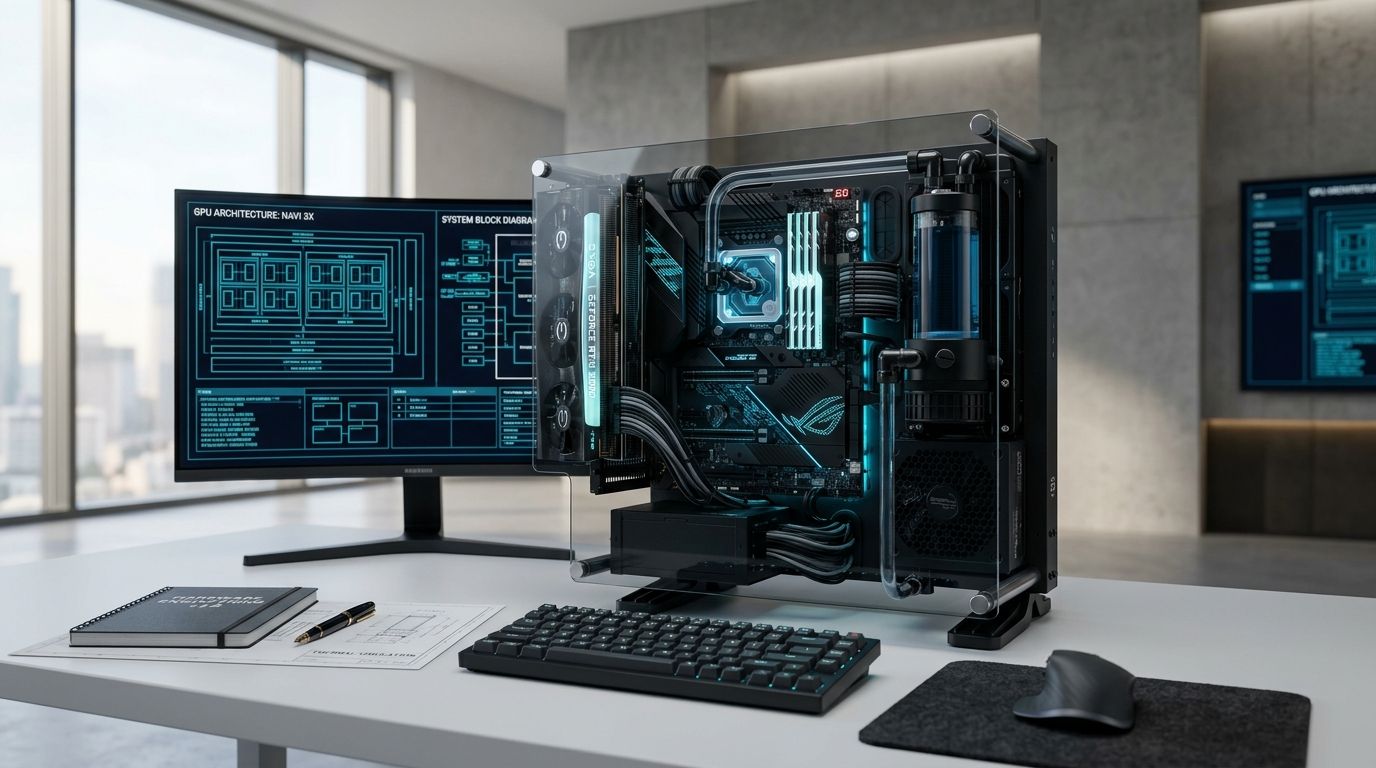
Deciding how much money you can spend on a new computer is usually the easy part. The real headache begins twenty minutes later, when you open a parts configurator and realize that nearly every component invites you to spend just a little bit more.
The Seductive Trap of Component Creep
A processor with two more cores is only $40 extra. The graphics card tier right above your target seems within reach if you skip lunch a few times. 32 gigabytes of memory feels safer than 16. The NVMe drive with 7,000 megabytes per second advertised read speeds has sleek packaging. The premium motherboard has heavier heatsinks. And the showcase case with panoramic tempered glass looks undeniably sharper than the mesh box you originally planned.
Individually, none of these upgrades seem unreasonable. Collectively, they obliterate your budget. Before you have even clicked checkout, a balanced $1,000 system has quietly ballooned into a $1,400 bill, or worse, you end up cutting corners on the power supply and cooling just to fit an overpowered graphics card you cannot even fully utilize.
Over years of building, troubleshooting, and diagnosing systems at Kamashka, one fundamental truth becomes clear: a PC budget should never be divided evenly across components, nor should it follow rigid generic formulas like 'spend 40% on the GPU.' The only rational way to allocate money is to work backward from the actual physical demands of what you do with the machine every day.
The Golden Rule: The Workload Determines the Budget
There is no universally optimal PC build. A computer configured for competitive 1080p esports requires an entirely different balance of resources than a workstation rendering 4K video timelines or compiling large multi-service software repositories.
When you treat hardware as a balanced ecosystem rather than a checklist of individual parts, you immediately see where your money creates tangible value and where it vanishes into marketing margins.
Consider how component priorities invert across different real-world workloads:
| Workload | Top Priority (Spend Here) | Secondary Priority | Area to Economize |
|---|---|---|---|
| 1080p Esports Gaming | High Single-Core CPU, Fast RAM | Mid-Tier GPU (High FPS) | Motherboard Tier, Liquid Cooling |
| 1440p / 4K AAA Gaming | Strong GPU, Sufficient VRAM (12GB+) | Mid-Tier Modern CPU (e.g. Ryzen 5 / i5) | Gen 5 Storage, Luxury PC Case |
| Software Development | Multi-Core CPU, 32GB–64GB RAM | Fast TLC NVMe Storage (4K random) | Dedicated GPU (Integrated often suffices) |
| Video Editing & Motion Graphics | Fast NVMe Scratch Disks, 64GB RAM | GPU with VRAM + Hardware Encoders | Extreme CPU Overclocking Boards |
| Local AI & Machine Learning | Maximum GPU VRAM (16GB–24GB+) | High-Wattage Tier-A PSU, System RAM | Aesthetic RGB, Showcase Cases |
GPU Priorities: The Danger of the Single-Component Trap
For gamers, the graphics card is almost universally the single most expensive line item. Because GPU marketing is loud and direct, builders frequently conclude that dedicating 50% or 60% of their total wallet to the graphics card guarantees a great gaming PC. In practice, an unbalanced build creates frustrating bottlenecks.
Pairing an aggressive, high-tier GPU with an underpowered budget processor results in severe frame-time stuttering in modern titles, particularly in CPU-heavy urban areas or physics-intensive scenes. Even worse, if you spend all your money on a 1440p-capable GPU but play on an older 1080p 60Hz office monitor, you are generating frames your monitor is physically incapable of displaying. That GPU budget would have generated a drastically better gaming experience had part of it been spent on a high-refresh variable-rate display or a smoother CPU platform.
Furthermore, VRAM allocation has become a critical longevity factor. In modern gaming engines utilizing high-resolution asset streaming and ray tracing, 8 gigabytes of video memory is increasingly becoming a restrictive baseline at 1440p settings. Sacrificing minor core clock speed to secure a card with 12GB or 16GB of VRAM frequently yields far better multi-year value than chasing peak theoretical clock frequencies.
CPU Priorities: Don't Buy a Brand Tier, Buy Compute Behavior
One of the easiest ways to waste money on a processor is to buy into marketing hierarchies without understanding your software's thread utilization. Processors are often advertised with core counts that sound overwhelmingly impressive, but most everyday applications and games do not scale linearly across infinite threads.
For gaming and general interactive computing, single-core speed, modern instruction architecture, and large cache pools (such as 3D V-Cache) matter far more than having 16 or 24 cores idling in the background. A modern 6-core or 8-core processor built on a current architecture almost always outperforms an older or higher-tier 12-core processor in real-world gaming scenarios.
The calculation flips completely when building a production workstation. If your daily work involves compiling software repositories, running Docker container clusters, rendering 3D geometries, or batch-encoding media timelines, additional physical cores directly correlate with minutes saved every single workday. In those workloads, stepping up to a higher-core tier is an investment that pays tangible dividends.
Motherboard Reality: The Most Misunderstood Component in the Build
Of all PC components, the motherboard is surrounded by the highest concentration of marketing mythology. Retail product pages are filled with military-themed graphics, dragon crests, reinforced heatsinks, and promises of extreme performance. But here is the plain technical truth: a $400 motherboard does not make your CPU run faster or your games produce higher frame rates than a competent $150 board using the same chipset.
The motherboard's fundamental job is electrical delivery, signal routing, and interface stability. It must deliver clean, stable power through its Voltage Regulator Modules (VRMs) so the processor can sustain its rated boost clocks without thermal throttling. It must provide the PCIe lanes, M.2 storage slots, USB headers, and networking interfaces you actually plug into.
When you spend triple the money on an enthusiast-grade motherboard, you are paying for extreme liquid-nitrogen overclocking circuitry, post-code diagnostic displays, 10Gbps Ethernet, and complex PCIe lane bifurcations. If you are running your hardware at stock speeds and using standard NVMe drives, that extra $250 delivers exactly zero additional performance. That money belongs in a faster GPU, larger memory capacity, or a reliable power supply.
RAM Platform: Capacity Dictates Experience, Latency Dictates Benchmarks
When selecting memory, there is a strict operational priority order: capacity first, channel configuration second, speed third, and sub-timings last.
If your system runs out of physical memory, your operating system is forced to page data to the storage drive, resulting in catastrophic hitches, application crashes, and severe system freezing. 16 gigabytes remains a functional minimum for lightweight gaming and general computing, but 32 gigabytes has decisively become the sweet spot for modern systems with multitasking, development workflows, and modern gaming.
Always ensure memory is installed in a dual-channel configuration across two matched sticks. Running a single stick of memory cuts your memory bus bandwidth in half, which cripples memory-sensitive workloads. However, spending exorbitant sums on ultra-low-latency, binned high-frequency memory yields marginal 1% to 3% frame improvements in most scenarios. Buy a reputable dual-channel kit at the platform's sweet spot frequency (such as DDR5-6000 CL30 or DDR4-3200 CL16) and avoid overspending on luxury heat spreaders.
Storage Realities: Advertised Sequential Speeds vs Daily Workload Snappiness
Storage manufacturers love to print massive sequential transfer speeds on their boxes: 5,000 MB/s, 7,000 MB/s, or 10,000 MB/s on cutting-edge Gen 5 drives. What they do not tell you is that sequential speeds only occur when reading or writing enormous, contiguous files, such as transferring an uncompressed 80GB raw video capture.
Operating system responsiveness, application launch times, and game level loading depend almost entirely on random 4K read and write speeds at low queue depths. In real-world daily usage, the difference in boot time or game loading between a mid-tier PCIe 3.0/4.0 NVMe drive (reading at 3,500 MB/s) and a premium Gen 5 drive (reading at 10,000 MB/s) is often less than a single second.
Prioritize drive reliability, TLC NAND flash (avoiding cheap QLC flash for primary operating system drives), and sufficient capacity. A reliable, spacious 2TB NVMe drive will serve your real-world experience infinitely better than an overpriced 1TB drive whose theoretical bandwidth you will never saturate.
The Power Supply (PSU): The Worst Possible Place to Cut Corners
When builders discover they are $50 over budget, the power supply is often the first place they attempt to squeeze out savings. This is the single most dangerous mistake in PC assembly.
A graphics card failure ruins your gaming session. A power supply failure can send a catastrophic voltage spike through your motherboard, processor, memory, and storage drives simultaneously, destroying your entire machine. A power supply is not just a power converter; it is the primary defensive barrier protecting your sensitive silicon from electrical faults, line noise, and transient spikes.
Modern graphics cards exhibit substantial transient power spikes—microsecond bursts of power draw that can peak at double the card's rated thermal design power. An inferior power supply with sluggish over-current protection (OCP) will trigger emergency shutdowns under sudden load spikes. Invest in a reputable power supply with genuine independent laboratory certifications (such as Cybenetics or verified 80-Plus Gold), adequate wattage headroom, and a 7 to 10-year manufacturer warranty.
Case and Cooling: Functional Thermals vs Aesthetic Upcharging
A PC case should be evaluated as an acoustic and thermal management chassis, not a piece of luxury furniture. The primary metric is airflow. Cases with solid glass front panels force intake fans to choke for air through tiny side slits, causing internal temperatures to soar and forcing fans to run at maximum RPM, creating distracting noise.
A well-engineered mesh front panel case with two or three quality intake fans and one exhaust fan creates positive static pressure, reduces dust accumulation, and provides sufficient ambient cooling for 90% of gaming and workstation builds.
Similarly, CPU cooling should be proportional to your processor's real heat output. A standard 65W to 105W processor does not require a $200 360mm all-in-one liquid cooler. A reliable $35 dual-tower air cooler will keep the CPU well within thermal operating parameters with zero pump noise and zero risk of fluid leaks over a decade of service.
The "One-Tier-Higher" Multiplier
The most common reason PC builds spiral out of budget is what we call the One-Tier-Higher trap. When you look at each component in isolation, bumping up to the next tier seems trivial: $30 for a slightly faster CPU, $45 for the next GPU model, $25 for RGB memory, $30 for a beefier motherboard, $20 for a modular PSU, and $25 for a prettier case.
None of those increments feel significant on their own. But when you sum them up, your build cost has climbed by $175—nearly 20% on an $800 to $1,000 build. Even worse, that extra expenditure was scattered haphazardly across minor aesthetic and marginal upgrades instead of being concentrated into a component that would actually transform your daily computing experience.
The 10-Step Practical Decision Framework
Before buying a single component, run your parts list through this structured decision hierarchy:
- Lock the Budget: Establish a rigid ceiling before opening parts configurators.
- Identify the Anchor Workload: Determine the one task that will push this machine hardest (competitive FPS, 4K rendering, code compilation, CAD).
- Fund the Anchor Component: Allocate budget to the part that directly dictates performance for that workload (GPU for gaming, CPU/RAM for compiling/rendering).
- Choose a Balanced Partner: Select the accompanying CPU or GPU so the anchor component is never starved of data or artificially throttled.
- Right-Size Memory: Pick 32GB (or 64GB for workstation tasks) of dual-channel RAM at platform sweet-spot speeds without luxury overspending.
- Select Storage by Real-World Utility: Choose a reliable TLC NVMe SSD with ample capacity rather than chasing benchmark-only sequential speeds.
- Buy a Motherboard for I/O, Not Marketing: Pick a board with adequate VRM cooling and the exact ports, slots, and Wi-Fi you will actually plug in.
- Protect Silicon with a Quality PSU: Secure an independently vetted, tier-rated power supply with at least 20% to 30% wattage headroom.
- Prioritize Mesh Airflow Over Glass Aesthetics: Ensure unobstructed thermal pathways and reliable fan setups before spending on RGB lighting.
- Conduct the 24-Hour Sanity Audit: Step back for a day. Ask yourself of every premium part: 'If I downgrade this to the sensible option, will my actual day-to-day experience suffer?' If the answer is no, reallocate or save the money.
The Compatibility Safety Checklist
Before placing an order, physically and electrically verify compatibility across all parts:
- Socket & Chipset BIOS Support: Confirm the motherboard BIOS natively boots your CPU without requiring an older loaner CPU to flash.
- RAM Clearance & Cooler Dimensions: Verify that tall memory heat spreaders do not collide with your dual-tower CPU air cooler.
- GPU Length vs Case Clearance: Measure your graphics card's physical length against case clearance, especially if front-mounting a radiator.
- PSU Connector Requirements: Ensure the power supply provides native 12V-2x6 or sufficient dedicated 8-pin PCIe power cables for your GPU without daisy-chaining.
The Kamashka Hardware Approach
At Kamashka Hardware, we build workstations, diagnostic tools, and custom systems around this exact philosophy. A computer should be an instrument of productivity, creativity, and enjoyment—engineered for rock-solid stability and genuine efficiency, not a showroom for marketing markups.
Whether you are planning your first build, upgrading an existing rig, or equipping an engineering team, our hardware platform and diagnostic services exist to guide you toward balanced, intelligent component choices that respect both your budget and your real-world ambitions.
Building a Custom PC?
Explore Kamashka Hardware for balanced component selection, workstation engineering, and build support.
The Complete PC Architecture & Budgeting Trilogy
How to decide which PC components actually deserve the budget based on your workload.
Part 2Should you spend on maximum performance today, or invest in a newer platform for tomorrow?
Part 3Where to cut costs intelligently without creating an unbalanced or compromised build.